
Selenium 中的 JavaScriptExecutor 示例
 Krishna Rungta
 什么是 JavaScriptExecutor?
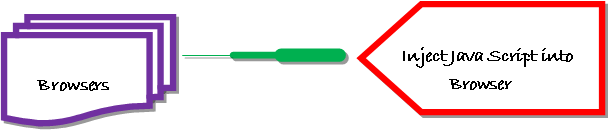
JavaScriptExecutor 是一个接口,通过 Selenium Webdriver 帮助执行 JavaScript。JavaScriptExecutor 提供两个方法“executescript”和“executeAsyncScript”来在选定的窗口或当前页面上运行 JavaScript。
为什么我们需要 JavaScriptExecutor?
在 Selenium Webdriver 中,定位器(如 XPath、CSS 等)用于识别网页并对其执行操作。
如果这些定位器不起作用,您可以使用 JavaScriptExecutor。您可以使用 JavaScriptExecutor 对 Web 元素执行所需的操作。
Selenium 支持 javaScriptExecutor。无需额外的插件或附加组件。您只需在脚本中导入 (org.openqa.selenium.JavascriptExecutor) 即可使用 JavaScriptExecutor。
Selenium 中的 JavaScriptExecutor 方法
executescript
此方法在 Selenium 当前选定的帧或窗口的上下文中执行 JavaScript 。此方法中使用的脚本在匿名函数(一个没有名称的函数)的主体中运行。我们也可以向其传递复杂的参数。
脚本可以返回值。返回的数据类型为
- 布尔值
- Long
- 字符串
- 列表
- WebElement。
JavascriptExecutor 语法
JavascriptExecutor js = (JavascriptExecutor) driver;
js.executeScript(Script,Arguments);
- 脚本 – 这是需要执行的 JavaScript。
- 参数 – 它是脚本的参数。它是可选的。
executeAsyncScript
使用异步脚本,您的页面渲染速度更快。它不会强制用户等待脚本下载后页面才渲染。此函数将在 Selenium 当前选定的帧或窗口的上下文中执行异步 JavaScript 代码段。执行的 JS 是单线程的,带有一个以同步方式运行的各种回调函数。
如何在 Selenium 中使用 JavaScriptExecutor
以下是如何在 Selenium 中使用 JavaScriptExecutor 的分步过程
步骤 1) 导入包。
import org.openqa.selenium.JavascriptExecutor;
步骤 2) 创建引用。
JavascriptExecutor js = (JavascriptExecutor) driver;
步骤 3) 调用 JavascriptExecutor 方法。
js.executeScript(script, args);
使用 Selenium 中的 JavaScriptExecutor 点击元素的示例
对于 executeScript,我们将逐一查看三个不同的示例。
1) 示例:使用 JavaScriptExecutor 点击登录按钮并生成警报窗口。
在此场景中,我们将使用“Guru99”演示网站来演示 JavaScriptExecutor。在此示例中,
- 启动 Web 浏览器
- 打开网站 https://demo.guru99.com/V4/ 并
- 使用凭据登录

- 登录成功后显示警报窗口。
import org.openqa.selenium.By;
import org.openqa.selenium.JavascriptExecutor;
import org.openqa.selenium.WebDriver;
import org.openqa.selenium.WebElement;
import org.openqa.selenium.firefox.FirefoxDriver;
import org.testng.annotations.Test;

public class JavaSE_Test {


    @Test
    public void Login()
    {
        WebDriver driver= new FirefoxDriver();

        //Creating the JavascriptExecutor interface object by Type casting
        JavascriptExecutor js = (JavascriptExecutor)driver;

        //Launching the Site.
        driver.get("https://demo.guru99.com/V4/");

        WebElement button =driver.findElement(By.name("btnLogin"));

        //Login to Guru99
        driver.findElement(By.name("uid")).sendKeys("mngr34926");
        driver.findElement(By.name("password")).sendKeys("amUpenu");

        //Perform Click on LOGIN button using JavascriptExecutor
        js.executeScript("arguments[0].click();", button);

        //To generate Alert window using JavascriptExecutor. Display the alert message
        js.executeScript("alert('Welcome to Guru99');");

    }
}
输出:当代码成功执行时。您将观察到
- 成功点击登录按钮,并且
- 将显示警报窗口(见下图)。

2) 示例:使用 JavaScriptExecutor 捕获抓取数据并导航到不同的页面。
执行以下 selenium 脚本。在此示例中,
- 启动网站
- 获取网站的详细信息,例如网站的 URL、标题名称和域名。
- 然后导航到不同的页面。
import org.openqa.selenium.JavascriptExecutor;
import org.openqa.selenium.WebDriver;
import org.openqa.selenium.firefox.FirefoxDriver;
import org.testng.annotations.Test;

public class JavaSE_Test {

    @Test
    public void Login()
    {
        WebDriver driver= new FirefoxDriver();

        //Creating the JavascriptExecutor interface object by Type casting
        JavascriptExecutor js = (JavascriptExecutor)driver;

        //Launching the Site.
        driver.get("https://demo.guru99.com/V4/");

        //Fetching the Domain Name of the site. Tostring() change object to name.
        String DomainName = js.executeScript("return document.domain;").toString();
        System.out.println("Domain name of the site = "+DomainName);

        //Fetching the URL of the site. Tostring() change object to name
        String url = js.executeScript("return document.URL;").toString();
        System.out.println("URL of the site = "+url);

       //Method document.title fetch the Title name of the site. Tostring() change object to name
       String TitleName = js.executeScript("return document.title;").toString();
       System.out.println("Title of the page = "+TitleName);


      //Navigate to new Page i.e to generate access page. (launch new url)
      js.executeScript("window.location = 'https://demo.guru99.com/'");
    }
}
输出:当上述代码成功执行后,它将获取网站的详细信息并导航到不同的页面,如下所示。

[TestNG] Running:
  C:\Users\gauravn\AppData\Local\Temp\testng-eclipse-467151014\testng-customsuite.xml

log4j:WARN No appenders could be found for logger (org.apache.http.client.protocol.RequestAddCookies).
log4j:WARN Please initialize the log4j system properly.
log4j:WARN See https://logging.apache.ac.cn/log4j/1.2/faq.html#noconfig for more info.
Domain name of the site = demo.guru99.com
URL of the site = https://demo.guru99.com/V4/
Title of the page = Guru99 Bank Home Page
PASSED: Login

===============================================
    Default test
    Tests run: 1, Failures: 0, Skips: 0
===============================================

3) 示例:使用 JavaScriptExecutor 向下滚动。
执行以下 selenium 脚本。在此示例中,
- 启动网站
- 向下滚动 600 像素
import org.openqa.selenium.JavascriptExecutor;
import org.openqa.selenium.WebDriver;
import org.openqa.selenium.firefox.FirefoxDriver;
import org.testng.annotations.Test;

public class JavaSE_Test {

    @Test
    public void Login()
    {
        WebDriver driver= new FirefoxDriver();

        //Creating the JavascriptExecutor interface object by Type casting
        JavascriptExecutor js = (JavascriptExecutor)driver;

        //Launching the Site.
        driver.get("http://moneyboats.com/");

        //Maximize window
        driver.manage().window().maximize();

        //Vertical scroll down by 600  pixels
        js.executeScript("window.scrollBy(0,600)");
    }
}
输出:当上述代码执行时,它将向下滚动 600 像素(见下图)。

Selenium 中 executeAsyncScript 的示例
使用 executeAsyncScript 有助于提高测试性能。它允许以更像正常编码的方式编写测试。
execSync 会阻止 Selenium 浏览器执行进一步的操作,但 execAsync 不会阻止操作。一旦脚本完成,它将向服务器端 测试 套件发送回调。这意味着脚本中的所有内容都将由浏览器而不是服务器执行。
示例 1:在被测浏览器中执行休眠。
在此场景中,我们将使用“Guru99”演示网站来演示 executeAsyncScript。在此示例中,您将
- 启动浏览器。
- 打开网站 https://demo.guru99.com/V4/。
- 应用程序等待 5 秒以执行进一步的操作。
步骤 1) 使用 executeAsyncScript() 方法在等待 5 秒(5000 毫秒)之前捕获开始时间。
步骤 2) 然后,使用 executeAsyncScript() 等待 5 秒。
步骤 3) 然后,获取当前时间。
步骤 4) 减去(当前时间 – 开始时间)= 经过时间。
步骤 5) 验证输出,它应该显示超过 5000 毫秒
import java.util.concurrent.TimeUnit;

import org.openqa.selenium.JavascriptExecutor;
import org.openqa.selenium.WebDriver;
import org.openqa.selenium.firefox.FirefoxDriver;
import org.testng.annotations.Test;

public class JavaSE_Test {

    @Test
    public void Login()
    {

        WebDriver driver= new FirefoxDriver();

        //Creating the JavascriptExecutor interface object by Type casting
        JavascriptExecutor js = (JavascriptExecutor)driver;

        //Launching the Site.
        driver.get("https://demo.guru99.com/V4/");

          //Maximize window
          driver.manage().window().maximize();

          //Set the Script Timeout to 20 seconds
          driver.manage().timeouts().setScriptTimeout(20, TimeUnit.SECONDS);

          //Declare and set the start time
          long start_time = System.currentTimeMillis();

          //Call executeAsyncScript() method to wait for 5 seconds
          js.executeAsyncScript("window.setTimeout(arguments[arguments.length - 1], 5000);");

         //Get the difference (currentTime - startTime)  of times.
         System.out.println("Passed time: " + (System.currentTimeMillis() - start_time));

    }
}
输出:成功显示经过时间超过 5 秒(5000 毫秒),如下所示
[TestNG] Running:
C:\Users\gauravn\AppData\Local\Temp\testng-eclipse-387352559\testng-customsuite.xml
log4j:WARN No appenders could be found for logger (org.apache.http.client.protocol.RequestAddCookies).
log4j:WARN Please initialize the log4j system properly.
log4j:WARN See https://logging.apache.ac.cn/log4j/1.2/faq.html#noconfig for more info.
Passed time: 5022
PASSED: Login

===============================================
    Default test
    Tests run: 1, Failures: 0, Skips: 0
===============================================
摘要
当 Selenium Webdriver 由于某些问题无法点击任何元素时,使用 JavaScriptExecutor。
- JavaScriptExecutor 提供“executescript”和“executeAsyncScript”两种方法来处理。
- 使用 Selenium Webdriver 执行 JavaScript。
- 演示了如何通过 JavaScriptExecutor 点击元素,如果 selenium 由于某些问题无法点击元素。
- 使用 JavaScriptExecutor 生成“警报”窗口。
- 使用 JavaScriptExecutor 导航到不同的页面。
- 使用 JavaScriptExecutor 向下滚动窗口。
- 使用 JavaScriptExecutor 获取 URL、标题和域名。
