
如何在 Selenium WebDriver 中截取屏幕截图
 Krishna Rungta
 Selenium 中的屏幕截图
Selenium Webdriver 中的屏幕截图用于错误分析。Selenium webdriver 可以在执行过程中自动截取屏幕截图。但如果用户需要自行捕获屏幕截图,则需要使用 TakeScreenshot 方法,该方法会通知 WebDrive 截取屏幕截图并将其存储在 Selenium 中。
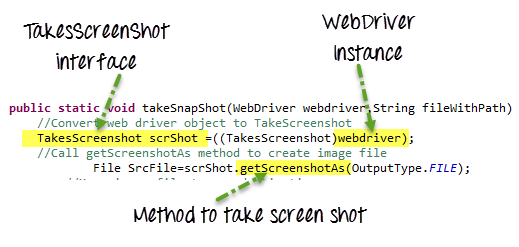
如何在 Selenium 中截取屏幕截图
以下是在 Selenium WebDriver 中捕获屏幕截图的分步过程
步骤 1) 将 WebDriver 对象转换为 TakeScreenshot
TakesScreenshot scrShot =((TakesScreenshot)webdriver);
步骤 2) 调用 getScreenshotAs 方法创建图像文件
File SrcFile=scrShot.getScreenshotAs(OutputType.FILE);
步骤 3) 将文件复制到所需位置
示例:在此示例中,我们将截取 https://demo.guru99.com/V4/ 的屏幕并将其保存为 C:/Test.png
这是 Selenium 中的屏幕截图代码
package Guru99TakeScreenshot;

import java.io.File;

import org.apache.commons.io.FileUtils;

import org.openqa.selenium.OutputType;

import org.openqa.selenium.TakesScreenshot;

import org.openqa.selenium.WebDriver;

import org.openqa.selenium.firefox.FirefoxDriver;

import org.testng.annotations.Test;

public class Guru99TakeScreenshot {

    @Test

    public void testGuru99TakeScreenShot() throws Exception{

		WebDriver driver ;
    	System.setProperty("webdriver.gecko.driver","C:\\geckodriver.exe");
    	driver = new FirefoxDriver();

        //goto url

        driver.get("https://demo.guru99.com/V4/");

        //Call take screenshot function

        this.takeSnapShot(driver, "c://test.png") ;

    }

    /**

     * This function will take screenshot

     * @param webdriver

     * @param fileWithPath

     * @throws Exception

     */

    public static void takeSnapShot(WebDriver webdriver,String fileWithPath) throws Exception{

        //Convert web driver object to TakeScreenshot

        TakesScreenshot scrShot =((TakesScreenshot)webdriver);

        //Call getScreenshotAs method to create image file

                File SrcFile=scrShot.getScreenshotAs(OutputType.FILE);

            //Move image file to new destination

                File DestFile=new File(fileWithPath);

                //Copy file at destination

                FileUtils.copyFile(SrcFile, DestFile);

    }

}
注意:Selenium 3.9.0 及以上版本不再提供 Apache Commons IO JAR。您可以简单地在此处下载它们并在您的项目中调用它们
什么是 Ashot API?
Ashot 是 Yandex 支持的第三方实用程序,由 Selenium WebDriver 支持,用于捕获屏幕截图。它会截取单个 WebElement 的屏幕截图,以及大于屏幕尺寸的页面的全页屏幕截图。
如何下载和配置 Ashot API?
有两种配置 Ashot API 的方法
- 使用 Maven
- 不使用任何工具手动操作
通过 Maven 配置
- 前往 https://mvnrepository.com/artifact/ru.yandex.qatools.ashot/ashot
- 单击最新版本,目前是 1.5.4
- 复制依赖项代码并添加到您的 pom.xml 文件中
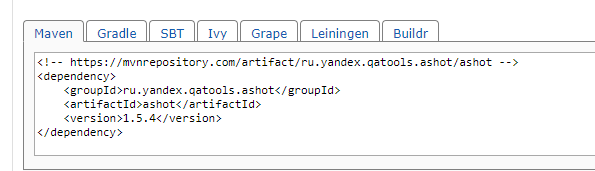
- 保存文件,Maven 将把 jar 添加到您的构建路径中
- 现在您已准备就绪!!!
无需任何依赖工具即可手动配置
- 前往 https://mvnrepository.com/artifact/ru.yandex.qatools.ashot/ashot
- 单击最新版本,目前是 1.5.4
- 单击 jar,下载并将其保存到您的计算机上
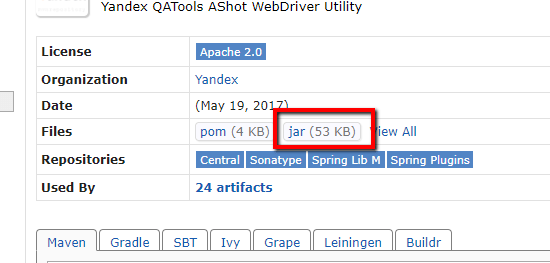
- 将 jar 文件添加到您的构建路径中
- 在 Eclipse 中,右键单击项目 -> 转到属性 -> 构建路径 -> 库 -> 添加外部 jar
- 选择 jar 文件
- 应用并关闭
使用 AShot API 捕获全页屏幕截图
步骤 1) 如果您只想截取屏幕尺寸页面的屏幕截图,请创建一个 Ashot 对象并调用 takeScreenshot() 方法。
Screenshot screenshot = new Ashot().takeScreenshot(driver);
但如果您想截取大于屏幕尺寸的页面的屏幕截图,请在调用 takeScreenshot() 方法之前调用 shootingStrategy() 方法来设置策略。然后调用 takeScreenshot() 方法,传入 webdriver,例如,
Screenshot screenshot = new AShot().shootingStrategy(ShootingStrategies.viewportPasting(1000)).takeScreenshot(driver);
这里 1000 是滚出时间(毫秒),因此为了截取屏幕截图,程序将每 1000 毫秒滚动一次。
步骤 2):现在,从屏幕截图获取图像并将其写入文件。您可以提供文件类型,如 jpg、png 等。
ImageIO.write(screenshot.getImage(), "jpg", new File(".\\screenshot\\fullimage.jpg"));
截取大于屏幕尺寸的页面的全页屏幕截图。
示例:这是截取 https://demo.guru99.com/test/guru99home/ 全页屏幕截图并保存到文件“screenshot.jpg”的示例。
由于使用了 Ashot API 的 ShootingStrategy 类,我们将能够捕获大于屏幕尺寸的页面的完整图像。
这是 Selenium 程序中的屏幕截图代码
package Guru99;

import java.io.File;
import java.io.IOException;
import javax.imageio.ImageIO;
import org.openqa.selenium.By;
import org.openqa.selenium.WebElement;
import org.openqa.selenium.WebDriver;
import org.openqa.selenium.chrome.ChromeDriver;
import ru.yandex.qatools.ashot.AShot;
import ru.yandex.qatools.ashot.Screenshot;
import ru.yandex.qatools.ashot.shooting.ShootingStrategies;

public class TestScreenshotUsingAshot {

public static void main(String[] args) throws IOException {

System.setProperty("webdriver.chrome.driver", "c:\\chromedriver.exe");
WebDriver driver  = new ChromeDriver();

driver.get("https://demo.guru99.com/test/guru99home/");
driver.manage().window().maximize();

Screenshot = new AShot().shootingStrategy(ShootingStrategies.viewportPasting(1000)).takeScreenshot(driver);

ImageIO.write(screenshot.getImage(), "jpg", new File("c:\\ElementScreenshot.jpg"));

	}

}
截取页面特定元素的屏幕截图
示例:这是截取 https://demo.guru99.com/test/guru99home/ 页面上 Guru 99 标志的元素屏幕截图并保存到文件“ElementScreenshot.jpg”的示例。
这是 Selenium 中的屏幕截图代码
package Guru99;
import java.io.File;
import java.io.IOException;
import javax.imageio.ImageIO;
import org.openqa.selenium.By;
import org.openqa.selenium.WebElement;
import org.openqa.selenium.WebDriver;
import org.openqa.selenium.chrome.ChromeDriver;
import ru.yandex.qatools.ashot.AShot;
import ru.yandex.qatools.ashot.Screenshot;
import ru.yandex.qatools.ashot.shooting.ShootingStrategies;
public class TestElementScreenshotUsingAshot {
public static void main(String[] args) throws IOException {

System.setProperty("webdriver.chrome.driver", "c:\\chromedriver.exe");
WebDriver driver  = new ChromeDriver();

driver.get("https://demo.guru99.com/test/guru99home/");
driver.manage().window().maximize();

// Find the element to take a screenshot

WebElement element = driver.findElement(By.xpath ("//*[@id=\"site-name\"]/a[1]/img"));

// Along with driver pass element also in takeScreenshot() method.

Screenshot = new AShot().shootingStrategy(ShootingStrategies.viewportPasting(1000)).takeScreenshot(driver,element);

ImageIO.write(screenshot.getImage(), "jpg", new File("c:\\ElementScreenshot.jpg"));
	}
}
使用 AShot 进行图像比较
package Guru99;

import java.awt.image.BufferedImage;
import java.io.File;
import java.io.IOException;
import javax.imageio.ImageIO;
import org.openqa.selenium.By;
import org.openqa.selenium.WebDriver;
import org.openqa.selenium.WebElement;
import org.openqa.selenium.chrome.ChromeDriver;
import ru.yandex.qatools.ashot.AShot;
import ru.yandex.qatools.ashot.Screenshot;
import ru.yandex.qatools.ashot.comparison.ImageDiff;
import ru.yandex.qatools.ashot.comparison.ImageDiffer;

public class TestImageComaprison {

    public static void main(String[] args) throws IOException {

        System.setProperty("webdriver.chrome.driver", "C:\\chromedriver.exe");
        WebDriver driver = new ChromeDriver();
        driver.get("https://demo.guru99.com/test/guru99home/");

        // Find the element and take a screenshot

        WebElement logoElement = driver.findElement(By.xpath("//*[@id=\"site-name\"]/a[1]/img"));
        Screenshot logoElementScreenshot = new AShot().takeScreenshot(driver, logoElemnent);

        // read the image to compare

        BufferedImage expectedImage = ImageIO.read(new File("C:\\Guru99logo.png"));

        BufferedImage actualImage = logoElementScreenshot.getImage();

        // Create ImageDiffer object and call method makeDiff()

        ImageDiffer imgDiff = new ImageDiffer();
        ImageDiff diff = imgDiff.makeDiff(actualImage, expectedImage);

        if (diff.hasDiff() == true) {
            System.out.println("Images are same");

        } else {
            System.out.println("Images are different");
        }
        driver.quit();
    }
}
摘要
- Ashot API 是 Yandex 的免费软件。
- 它是一个用于在 Selenium 中截取屏幕截图的实用程序。
- 它帮助您在不同平台(如桌面浏览器、iOS 模拟器移动 Safari、Android 模拟器浏览器)上截取单个 WebElement 的屏幕截图。
- 它可以截取大于屏幕尺寸的页面的页面屏幕截图。
- 此功能已在 Selenium 3 版本中移除,因此 Ashot API 是一个不错的选择。
- 它可以装饰屏幕截图。
- 它提供屏幕截图比较。
