
如何在 Selenium Webdriver 中上下滚动页面
 Krishna Rungta
 Selenium 中的滚动
要使用 Selenium 滚动,您可以使用 JavaScriptExecutor 接口,该接口有助于通过 Selenium Webdriver 执行 JavaScript 方法
语法
JavascriptExecutor js = (JavascriptExecutor) driver;
   js.executeScript(Script,Arguments);
- 脚本 - 这是需要执行的 JavaScript。
- 参数 - 它是脚本的参数。它是可选的。
Selenium 脚本向下滚动页面
让我们通过以下 4 种场景,使用 Selenium Webdriver 查看网页的向下滚动
- 场景 1:按像素向下滚动网页。
- 场景 2:按元素的可见性向下滚动网页。
- 场景 3:向下滚动网页到页面底部。
- 场景 4:网页上的水平滚动。
场景 1:按像素向下滚动网页。
Selenium 脚本
import org.openqa.selenium.JavascriptExecutor;
import org.openqa.selenium.WebDriver;
import org.openqa.selenium.chrome.ChromeDriver;
import org.testng.annotations.Test;

public class ScrollByPixel {

    WebDriver driver;
    @Test
    public void ByPixel() {
        System.setProperty("webdriver.chrome.driver", "E://Selenium//Selenium_Jars//chromedriver.exe");
        driver = new ChromeDriver();

        JavascriptExecutor js = (JavascriptExecutor) driver;

        // Launch the application
        driver.get("https://demo.guru99.com/test/guru99home/");

        //To maximize the window. This code may not work with Selenium 3 jars. If script fails you can remove the line below
        driver.manage().window().maximize();

        // This  will scroll down the page by  1000 pixel vertical
        js.executeScript("window.scrollBy(0,1000)");
    }
}
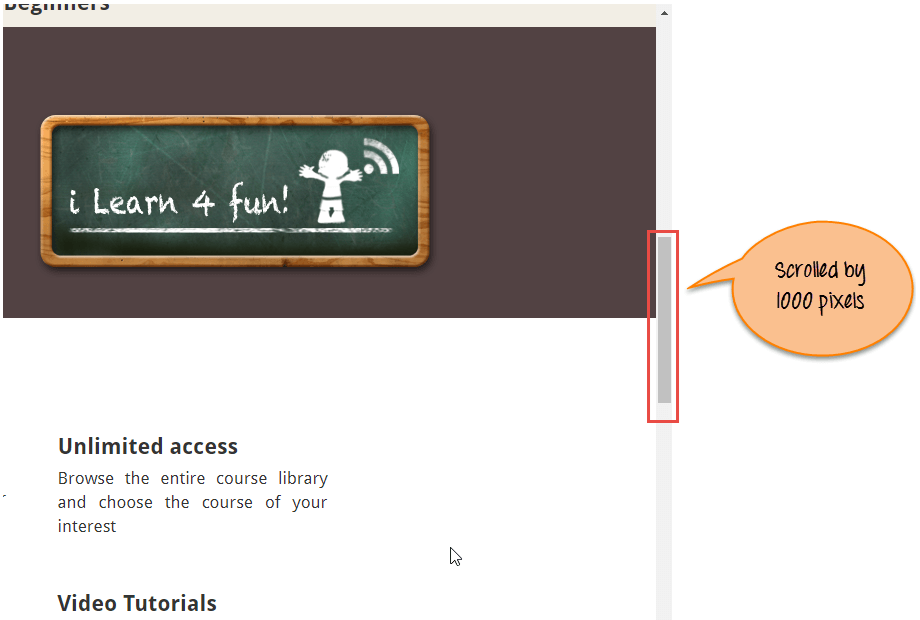
脚本描述:在上述代码中,我们首先在 Chrome 浏览器中启动给定的 URL。接下来,通过 executeScript 将页面滚动 1000 像素。Javascript 方法 ScrollBy() 将网页滚动到特定像素数。
ScrollBy() 方法的语法是
executeScript("window.scrollBy(x-pixels,y-pixels)");
x-像素是 x 轴上的数字,如果数字为正,则向左移动,如果数字为负,则向右移动。y-像素是 y 轴上的数字,如果数字为正,则向下移动,如果数字为负,则向上移动。
示例
js.executeScript("window.scrollBy(0,1000)"); //Scroll vertically down by 1000 pixels
输出分析:以下是执行上述脚本时的输出。
场景 2:按元素的可见性向下滚动网页。
Selenium 脚本
import org.openqa.selenium.By;
import org.openqa.selenium.JavascriptExecutor;
import org.openqa.selenium.WebDriver;
import org.openqa.selenium.WebElement;
import org.openqa.selenium.chrome.ChromeDriver;
import org.testng.annotations.Test;

public class ScrollByVisibleElement {

    WebDriver driver;
    @Test
    public void ByVisibleElement() {
        System.setProperty("webdriver.chrome.driver", "G://chromedriver.exe");
        driver = new ChromeDriver();
        JavascriptExecutor js = (JavascriptExecutor) driver;

        //Launch the application
        driver.get("https://demo.guru99.com/test/guru99home/");

        //Find element by link text and store in variable "Element"
        WebElement Element = driver.findElement(By.linkText("Linux"));

        //This will scroll the page till the element is found
        js.executeScript("arguments[0].scrollIntoView();", Element);
    }
}
脚本描述:在上述代码中,我们首先在 Chrome 浏览器中启动给定的 URL。接下来,滚动页面直到指定元素在当前页面上可见。Javascript 方法 scrollIntoView() 滚动页面直到指定元素完全可见。
js.executeScript("arguments[0].scrollIntoView();",Element );
“arguments[0]”表示页面从 0 开始的第一个索引。
其中“Element”是网页上的定位符。
输出分析:以下是执行上述脚本时的输出。

场景 3:向下滚动网页到页面底部。
Selenium 脚本
import org.openqa.selenium.JavascriptExecutor;
import org.openqa.selenium.WebDriver;
import org.openqa.selenium.chrome.ChromeDriver;
import org.testng.annotations.Test;

public class ScrollByPage {

    WebDriver driver;
    @Test
    public void ByPage() {
        System.setProperty("webdriver.chrome.driver", "E://Selenium//Selenium_Jars//chromedriver.exe");
        driver = new ChromeDriver();

        JavascriptExecutor js = (JavascriptExecutor) driver;

        // Launch the application
        driver.get("https://demo.guru99.com/test/guru99home/");

        //This will scroll the web page till end.
        js.executeScript("window.scrollTo(0, document.body.scrollHeight)");
    }
}
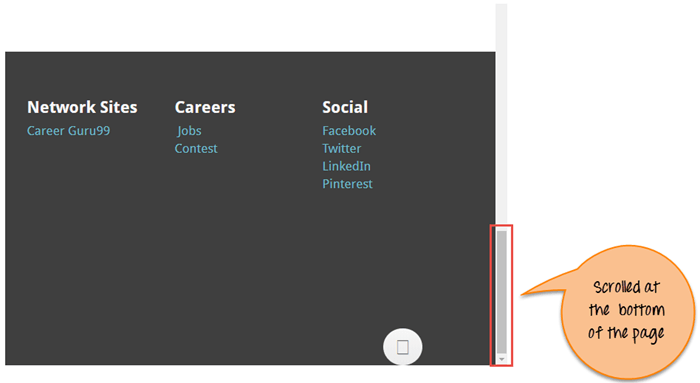
脚本描述:在上述代码中,我们首先在 Chrome 浏览器中启动给定的 URL。接下来,滚动到页面底部。Javascript 方法 scrollTo() 滚动到页面末尾。
js.executeScript("window.scrollTo(0, document.body.scrollHeight)");
“document.body.scrollHeight”返回 body(即网页)的完整高度。
输出分析:以下是执行上述脚本时的输出。
场景 4:网页上的水平滚动
Selenium 脚本
import org.openqa.selenium.By;
import org.openqa.selenium.JavascriptExecutor;
import org.openqa.selenium.WebDriver;
import org.openqa.selenium.WebElement;
import org.openqa.selenium.chrome.ChromeDriver;
import org.testng.annotations.Test;

public class HorizontalScroll {

    WebDriver driver;
    @Test
    public void ScrollHorizontally() {
        System.setProperty("webdriver.chrome.driver", "E://Selenium//Selenium_Jars//chromedriver.exe");
        driver = new ChromeDriver();

        JavascriptExecutor js = (JavascriptExecutor) driver;

        // Launch the application
        driver.get("https://demo.guru99.com/test/guru99home/scrolling.html");

        WebElement Element = driver.findElement(By.linkText("VBScript"));

        //This will scroll the page Horizontally till the element is found
        js.executeScript("arguments[0].scrollIntoView();", Element);
    }
}
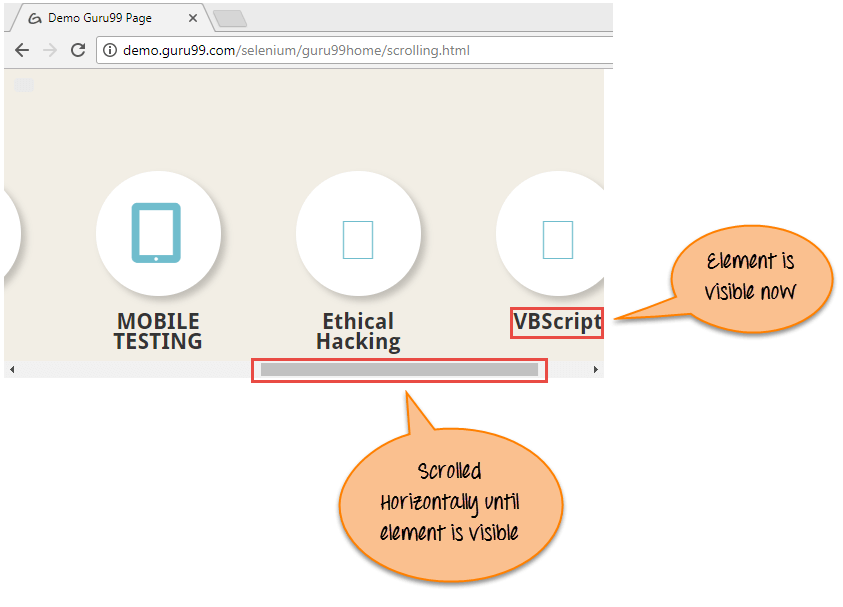
脚本描述:在上述代码中,我们首先在 Chrome 浏览器中启动给定的 URL。接下来,水平滚动页面直到指定元素在当前页面上可见。Javascript 方法 scrollIntoView() 滚动页面直到指定元素完全可见。
js.executeScript("arguments[0].scrollIntoView();",Element );
输出分析:以下是执行上述脚本时的输出。
了解更多关于JavaScriptExecutor
什么是滚动条?
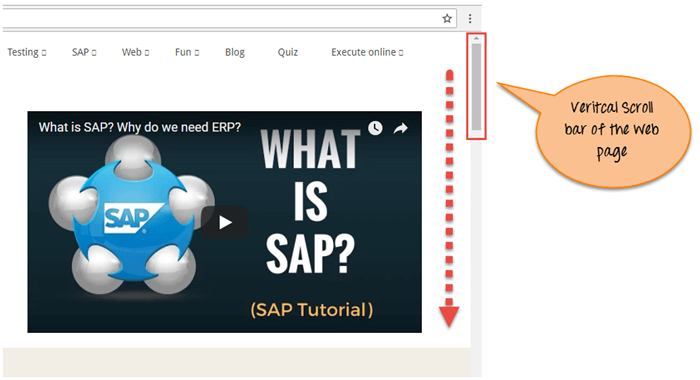
滚动条允许您在水平或垂直方向上移动屏幕,如果当前页面滚动不适合屏幕的可见区域。它用于上下移动窗口。
Selenium Webdriver 执行操作不需要滚动,因为它会操作 DOM。但在某些网页中,只有当用户滚动到它们时,元素才会变得可见。在这种情况下,滚动可能是必要的。
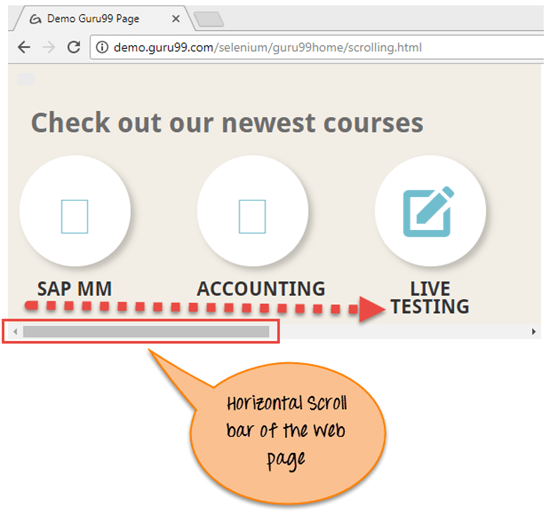
滚动条有两种类型:水平和垂直滚动条,如下截图所示。
摘要
- 在上述教程中,我们通过不同的场景演示了网页的滚动。
- 在第一个场景中,我们展示了按像素向下滚动页面。
- 在第二个场景中,我们展示了向下滚动页面直到元素可见。
- 在第三个场景中,我们展示了向下滚动页面到页面底部。
- 在第四个场景中,演示了网页上的水平滚动。
